Apex Legends Missing File Privileges Error Fix Guide
11 August 2026 | 313
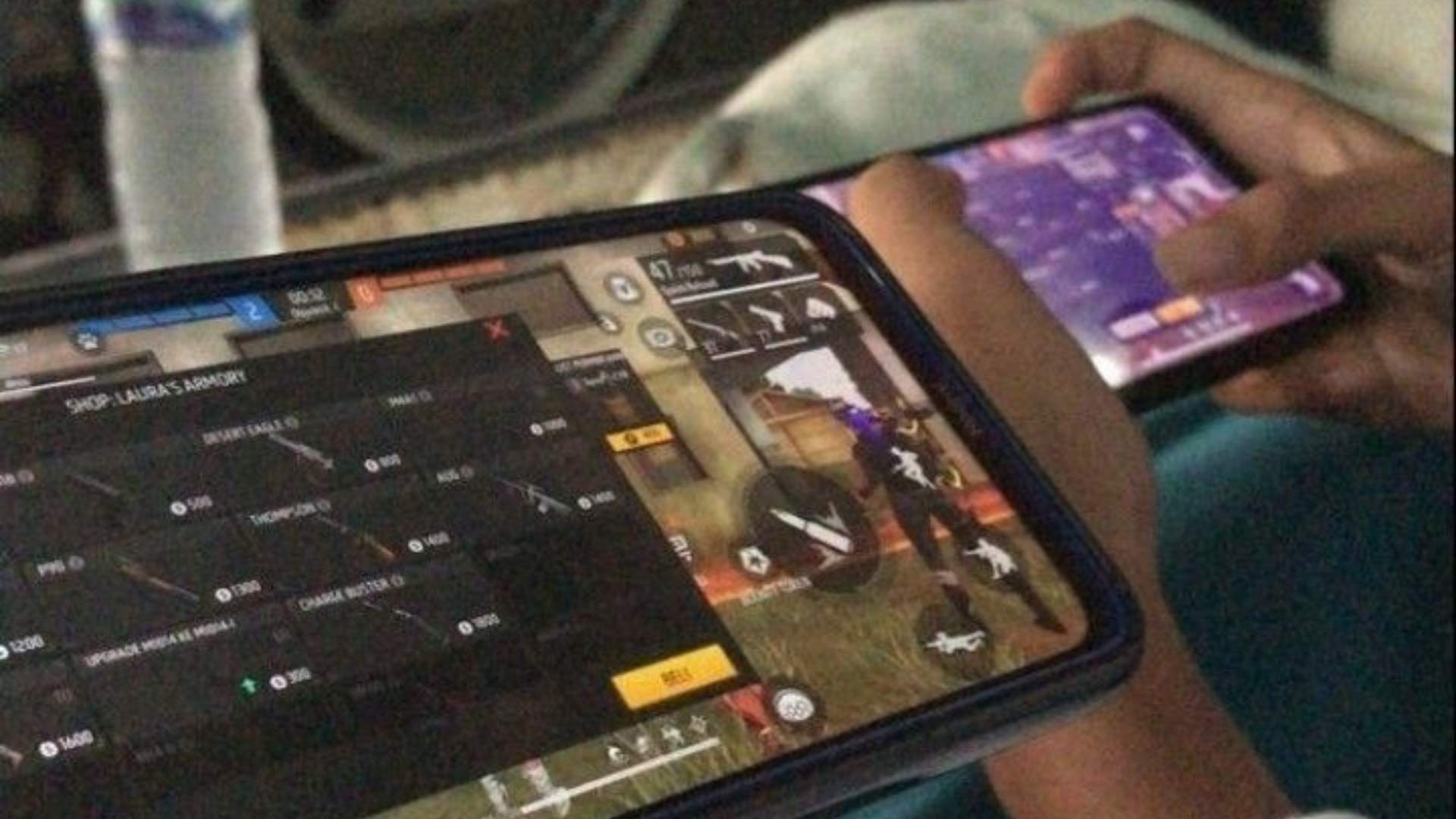
Encountering glitches while trying to drop into World's Edge can be an incredibly frustrating roadblock for competitive gamers. One of the most common issues players face during a game update is the missing file privileges message, which completely halts the installation process. This technical barrier typically indicates that the game launcher lacks the required system permissions to modify or overwrite files on your local drive.
Running the Desktop Launcher as Administrator
Providing elevated permissions to your digital storefront is often the most direct method to resolve restriction conflicts. You can achieve this by closing down your gaming platform completely and checking your background processes via the Windows Task Manager. Right-click the shortcut of your preferred desktop client and choose the option to execute it with full administrative permissions.
If this step successfully bypasses the update loop, you can permanently apply this configuration for convenience. Open the properties menu of the executable file, navigate directly to the compatibility options, and toggle the permanent administrative setting. This ensures that future application updates always possess the authorized clearance to access protected storage directory blocks.
Verifying the Integrity of Game Files
Corrupted data packages or interrupted background downloads frequently trigger file privilege alerts during routine installations. Utilizing the built-in validation tools provided by your digital client can systematically scan and repair damaged assets. The validation algorithm compares your local directory layout against the official server manifest to find missing components.
To initiate this process, open your game library list and navigate directly to the specific settings menu for the battle royale title. Selecting the data repair command will prompt the client to analyze your entire directory and automatically replace compromised files. This automated process can take several minutes depending on the read speeds of your solid-state drive.
Modifying Security Permissions and System Ownership
Deep-seated directory restrictions can occasionally block the system from writing temporary deployment data to your storage hardware. When the standard repair options fail, manually adjusting the security properties of the installation folder becomes necessary. Navigating to the primary game location allows you to review which user profiles possess active read and write authorization.
Right-click the main directory folder, open the advanced security properties, and verify that your current Windows profile holds complete control. If the owner field displays an unfamiliar system account, you can change the target designation to your active username. Applying these modified security rules recursively to all subfolders ensures the launcher faces no further system blockades.
Managing Background Antivirus and Clearing Download Cache
Aggressive security software can mistakenly flag legitimate battle royale update files as potential threats to your computer system. Temporarily pausing your active real-time shield or adding the game path to the official exclusion list often prevents false positives. It is equally helpful to purge the temporary download cache within your digital launcher settings to eliminate corrupt data queues.
Clearing out these outdated configuration blocks forces the application to re-establish a clean connection stream with the distribution servers. Once the cache is reset, reboot your desktop computer to ensure all background system tasks are completely refreshed. Launch the client once more to finalize the patch sequence and return safely to the arena.